Friday, January 25, 2013

All in One for Digital Photography

Today fourth grade students rocked out a digital photography lesson!  I am very excited about the process and results.

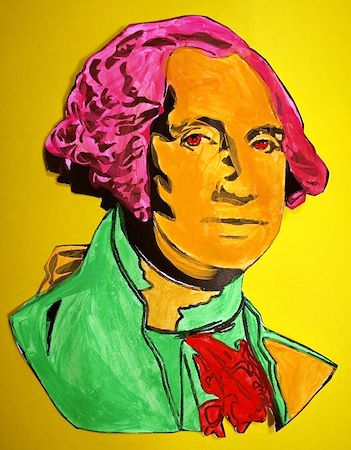
We started our journey into pop art by painting simple drawings of presidents found on Crayola's website.  Students used three to four fluorescent paints. (I am really impressed with Crayola's Premier Tempera! I think the extra few dollars is worth it for the fluorescent colors.)  I'll publish the results of this project on artsonia soon!  We also did research about pop art and artists using the iPad.  I blogged about this earlier.

Students used Photoshop Express
to edit photographs.
With this foundation, we reviewed the meaning of pop art and I asked the students to think of popular images they saw just in our elementary school world.  We talk about logos that they see all the time, school celebrities, and specific items that are a part of their everyday life here at school.  I wanted them to find items that are not always considered art and to turn them into art. (I do want to say that the Mona Lisa photo is part of our world as a celebrity.  I use the "I say Mona... you say Lisa" at part of my classroom management. The students have to then strike the Mona Lisa pose, so she is quite the celebrity here! Curriculum is always about the students' world to help them make meaning!)  

I have ten iPads, so the students worked in groups and each group created one final piece.  I went through the process on the projection screen and then students worked from a packet listing step by step instructions with screenshots. You can see the step by step packet here.  Before starting we also talked about saturation, contrast, and really making our selected object the focus of our photograph.

What I loved the most about the iPad today was that the whole lesson used one piece of equipment.  No plugging camera's into a computer or buying photography software.  With the ease of doing everything on the  iPad, my students were able to complete this project in one 40 minute class period.  It amazed me!  


See more results on Artsonia
The photo booth I made.
iPads and recycle copy  paper boxes! Quite a contrast! 
Pop Art President

Thursday, January 24, 2013

Using the iPad to Answer "I'M FINISHED!"

    Do you ever have some students finished with a project and others still working?  I do! The last thing I want to do is get them ahead again on starting the next project.  At first, I was giving these students a chance to use some apps on the iPad.  I let the students use apps like Pottery HD Lite and Faces iMake, but then I noticed students rushing their projects to use the iPad, and were they really getting anything out of using these apps so casually?

     Students were finishing a Pop Art project this week and we didn't have a lot of class time to talk about all the many artists that encompass pop art.  How was I going to get this information to them and still make forward progress?  The iPad answers my dilemma once again!  On my website that I design with Weebly, I linked websites and videos of artists.  Students brought their own earbuds to class that day and were instructed to do Pop Art research!

     This solved many problems!  Students who were behind got caught up.  They have a chance to do the research on their own time if they choose because the material is all available on my website.  These students also didn't rush their projects to use the iPads.  Students using the iPad could share more easily than when they were using an app and were less distracting to the students finishing up their work.  I also felt like they were working on something that was adding to their learning experience, and not just buying time.  Overall, it was a productive day in art today for all my students!
Students found the link and videos on my website .

Thursday, November 29, 2012

Choice and Research with the iPad

 For the past four years, I have had third grade students create Ohio wildlife animals out of clay.  They also create habitats where playing with materials is encouraged.  Tissue paper turns into a pond and pom poms become rocks.  We even had a nest built in a paper tree for a bald eagle one year!

Each year I have difficulty getting the students to understand what exactly a wildlife animal is and is not.  There is always someone who wants to do a dog or horse.  It takes an inspirational talk for them to understand a stray dog is not exactly what we are going for (although I adopted my own daschund!)

This year, with the power of the iPad and wireless newly installed in my classroom, the students were able to do their own research.  I sent them to the Department of Natural Resources website for Ohio where there was an A-Z species guide.  Students choose their own animal and saved the picture to photo library.  They just touch the picture, and a SAVE IMAGE button appears.  Couldn't be easier!  Each student picked their own animal and wrote down the name.  Then students used a search engine to find more photos for different angles and a close up on the head.

https://www.dropbox.com/
Images were then downloaded into the Dropbox app and immediately appeared onto my computer.  Dropbox has been working extremely well for the transfer of pictures and documents from the iPads to my computer.  I printed them out (I'm lucky to have a colored printer) and laminated them.  I can already tell the results of our project are going to be the best yet, and we will have a greater variety of animals represented instead of the same ten I would have printed off for them.  Students have more information to create with and have a sense of ownership by doing their own research.  To watch our progress on this projects and others visit our school blog!    
 
I'm excited to see how the painting improves from having their own resources to look at!
Every student assumes they know what a turtle looks like, until they can really see it in photographs! 


Tuesday, November 6, 2012

Diving In

The iPads are finally here and we dove right in and are working out all the logistics together. The tech crew spent hours (no seriously, hours!) on the phone with Apple. They finally got me set up to I can purchase my own apps through the Apple's Education Store. You must buy a volume lease for each app on each iPad, but all the apps I have bought so far had a considerable discount and didn't break the bank too bad. I ended up buying 20 licenses because it was the same price as 10. One can only hope that the future is bringing more iPads my way! I wrote $200 into my grant for apps. My tech guru set me up with two $100 dollar vouchers. This is the smallest increment when buying the vouchers from Apple so take note when writing a grant! I do have to say just one my shout out to the tech crew, Omar, Drew, and Scott! They spent so much time putting the cases on, figuring out Apple's system for education, and then personally delivery them to my art room and syncing them up! The iPads automatically sync when I download an app to my iTunes account on my classroom computer, so I don't have to individually manage all ten! We named the iPads color names, red, yellow, green, etc to coordinate with how my tables are labeled. The green table then always uses the green iPad. Hopefully this will help me keep track of projects and possible problems!