Showing posts with label art projects. Show all posts

Friday, November 22, 2013

Stop Motion Animation on the iPad


4th grade students will be doing stop motion animation with the iPad.  We have watched a few videos on You Tube.  First I wowed them with a video my cousin made.  They made this with a camera and mac.  I told students the iPad wasn't available yet, and how much time and pictures it took the artists to complete this video.  One student shouted out, "Yea, they barely even had cameras!" And a brief history lesson of the camera began...


Now my 4th grade students can't be that ambitious because we only have a 1/2 hour to get our project done.  So we looked at how something as simple as a rock can have a story...


HOWEVER IF ANY 4th GRADE STUDENTS ARE FEELING AMBITIOUS.... Download the app at home!  You have a great break coming up to make some great art!  I can't wait to see what you make!


Wednesday, November 20, 2013

MoMA Art Lab on the iPad with Kindergarten

MoMA Art Lab
                                                                 
Kindergarten students have started off their art training learning how to use the elements of art line and shape. We used the art app MoMA Art Lab to play with these elements.  Some students stayed abstract and others made representational objects like houses, snowman, and cars.  I believe play is an important part of the art process, and this app allows students to do that with minimal supplies, mess and time.  We didn't explore the activities on the app yet, but I'm hoping after this introduction students will continue to use the app at home and in the future if they have choice time on the iPad.

Since I was more on top of the lesson, today's class finished early, so I had them do the activites.  I choose the Mastisse game where they had to cut out shapes. It turned out to be a really good motor skill practice for them!
Students had to "cut" the shapes out with their finger.


Thursday, October 31, 2013

Children's Books on the iPad


A kindergarten lesson often has a book to accompany it, so a search on iTunes commenced to look for free children's books. I am a printmaker/bookmaker, so my love for books runs hardcore, but I liked this experience of using an e-book for a few reasons.  First, I like that the students have some ownership of the experience.  Flipping pages, pace, and listening to it over again was in their control.  Next, the book was interactive.  It asked the students to participate in the story.  They painted the dog's paw prints and found the frog under the leaves.  Finally, there is a management advantage.  My classes run back to back with no minutes in between.  I needed to get paint poured and had no time during my previous classes.  While students sat in groups of two or three listening to the book I was able to get paint ready so there was no wasted time.  A huge bonus during a 40 minute class!  While getting all the colors ready, I noticed the kindergarten students really experienced joy while listening and interacting with the book.  Teacher and students were happy!

Once students were finished with the book and materials were ready, we regrouped on the carpet and talked about the story.  At the end of the book there is a rainbow and this flowed into our lesson of painting a ROYGBV rainbow.  Next class students practiced cutting zig-zag and curvy lines from great worksheets I found on Pinterest and then cut out and glued their rainbow lines to black paper.  My first class drew the lines themselves, and while the results were much more unique, many students struggled because their self drawn lines where to intricate to cut out themselves.  For the second day, I drew curvy and zig-zag lines on the back of the paper and students felt much more confident about their cutting skills.  Check out our results on Artsonia!

What e-books have you found or do you use?!?!?!

Kindergarten read Stella and Sam Rainy Days and Rainbows


I drew curvy and zig-zags lines on the back.
Students drew their own curvy and zig-zag lines.

Tuesday, October 8, 2013

A Project During Our Project: Monsters Invade Our School!


Fifth grade was working on a printmaking project and I only had a small amount of cutters and more importantly, bench hooks.  What to do with the other half of students?  This is why I love having iPads!  Low materials but high on results.  A perfect double project maker!

Every fall I do a small unit on fear.  I found this Eye Paint Monsters app and knew the kids would have a chance to play and experiment!  It's a touch and shoot app.  The monsters are already drawn and the students take pictures to fill in the empty areas.  To enrich the app, I added the concept of textures and the monster had to be in our school.  I like that you can edit your picture after saving it.  If students wanted to use people, (such as the principal being attacked by bats!) they had to take two pictures so one could be published on Artsonia.  No peeps allowed on the site.  To make two photos, it's as simple as taking the first photo, saving it, and repeating the process for the second photo.  I had a box full of fabrics including fur, lace, and netting for the students to photograph.  Some students even used textures they found around the school and the clothes they were wearing.  They like experimenting with the camera and using perspective to place the monster in just the right pose.  The monster could be big or small, depending on the perspective. Eye Paint Monsters was a great one day project that students were enthusiastic about, help us while having wait time on another project, and results were entertaining to the whole school!


Monsters are invading our school!

If a student took a picture with a person, they had to take a second picture.
The picture below is by the same student. 
This monster is tiny and standing in a students hand.
The students enjoyed playing with perspective.

Don't mess with our cook! 


All monsters are on Artsonia

Maybe this guy is blogging?!


Wednesday, October 2, 2013

Sometimes, Less is More on the iPad


Don't you hate it when you get a free app and you're all excited because the pictures looked so cool... and then you find out only the download was free?  (Cue Price is Right loosing sound effect!)  Sooooo disappointing!  Now you have to buy all the pieces and parts (Which I haven't quite figured out how to do, since I buy everything through vouchers with the apple volume store. Any suggestions?)

Usually, this app would get deleted or forgotten about.  However, in this case, the limited use of the app was actually preferred and perfect for a kindergarten project!  

Paper 53
Kindergarten was learning about horizontal and vertical lines.  We used tissue paper to create the lines in our first project "Bedhead" but I thought a lesson on the iPad would be a good introduction to using the iPads in art.  After all, most of kindergarten is about all introducing them to materials, how to use them and play/take risks! When I came across Paper 53, the ease of picking colors and only have one option, the pen, was perfect.  The kids still had a choice of colors, but they were limited with the pen as their only tool.  Boundaries are often good.  It's within the boundaries kids sometimes have more room to explore.  Students are less busy switching materials and more busy making marks.  Without the choice of other tools, the assignment stayed focused on lines and colors.  The results were beautiful little drawings that developed unexpected layers!

On a management side of things, I had students work in groups of two.  Our class sizes this year are small for K.  Normally, it's a 1:3 ratio.  After they were finished, which in most cases was me telling them they were, I wrote the name for the student and then cropped their name out when I published on Artsonia.
Here are some examples below and you can see the cropped results on our Artsonia site!


Friday, January 25, 2013

All in One for Digital Photography

Today fourth grade students rocked out a digital photography lesson!  I am very excited about the process and results.

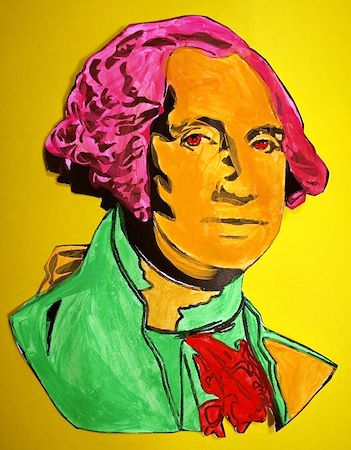
We started our journey into pop art by painting simple drawings of presidents found on Crayola's website.  Students used three to four fluorescent paints. (I am really impressed with Crayola's Premier Tempera! I think the extra few dollars is worth it for the fluorescent colors.)  I'll publish the results of this project on artsonia soon!  We also did research about pop art and artists using the iPad.  I blogged about this earlier.

Students used Photoshop Express
to edit photographs.
With this foundation, we reviewed the meaning of pop art and I asked the students to think of popular images they saw just in our elementary school world.  We talk about logos that they see all the time, school celebrities, and specific items that are a part of their everyday life here at school.  I wanted them to find items that are not always considered art and to turn them into art. (I do want to say that the Mona Lisa photo is part of our world as a celebrity.  I use the "I say Mona... you say Lisa" at part of my classroom management. The students have to then strike the Mona Lisa pose, so she is quite the celebrity here! Curriculum is always about the students' world to help them make meaning!)  

I have ten iPads, so the students worked in groups and each group created one final piece.  I went through the process on the projection screen and then students worked from a packet listing step by step instructions with screenshots. You can see the step by step packet here.  Before starting we also talked about saturation, contrast, and really making our selected object the focus of our photograph.

What I loved the most about the iPad today was that the whole lesson used one piece of equipment.  No plugging camera's into a computer or buying photography software.  With the ease of doing everything on the  iPad, my students were able to complete this project in one 40 minute class period.  It amazed me!  


See more results on Artsonia
The photo booth I made.
iPads and recycle copy  paper boxes! Quite a contrast! 
Pop Art President